Private beta · invite-only
AI employees for small businesses
Draft customer replies, track follow-ups, and keep daily work organized. Choose what your MiniOp can do.
- Prepares first — asks before it acts
- Free during the beta
- No agent builder or API key
A customer reply, ready for your review


Actual app interface with illustrative demo data. Sending requires a connected tool.
One job, four steps
1 Give it context
Describe the task and share the information it needs. Here, the customer address is missing a street number.
2 Review the draft
Read the prepared reply in the same conversation. Adjust the wording or ask for another version.
3 Choose the next action
Use the draft yourself, or approve a connected action when your workspace policy requires it.
4 Nothing slips
Follow-ups, notes, and drafts stay in one place — so what you promised never gets lost.
Every hire starts with a job
Pick a starting role, then describe the work in your own words. These five are ready on day one.

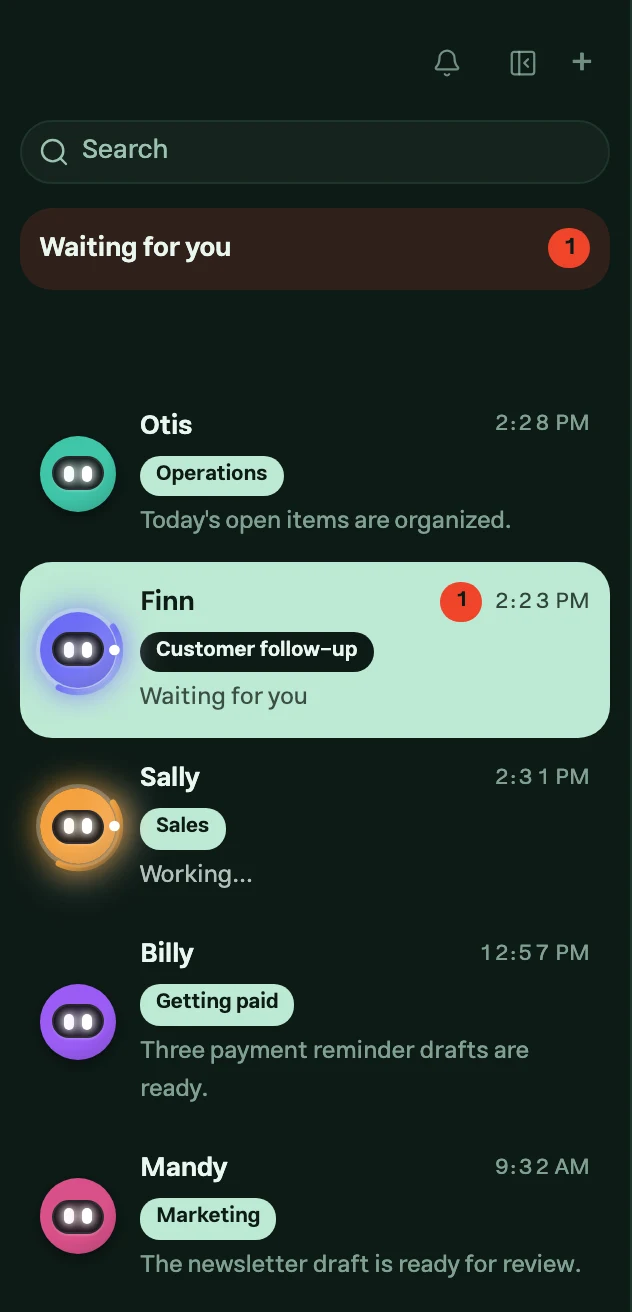
OtisOperations
Keeps daily work on track: what needs doing, what is open, and where every note lives.

FinnCustomer follow-up
Reminds you who needs a reply, drafts the follow-ups, and tracks what was promised.

SallySales
Tracks leads, nudges you at the right moment, and drafts outreach for your approval.

BillyGetting paid
Tracks invoices and who owes what, flags overdue accounts, and drafts payment reminders.

MandyMarketing
Drafts posts and announcements for your approval and keeps the plan in one place.
Names and job descriptions come straight from the hiring screen in the app.
Start with the work already on your plate
Customer follow-up
Draft replies and follow-ups. Keep track of what you promised.
Operations
Organize open items and keep daily notes together.
Getting paid
Track invoice details you provide and draft payment reminders.
- Drafted replies
- Follow-up tracking
- Daily notes
- Invoice reminders
- Marketing drafts
Give each MiniOp a job
Choose a starting role, then describe the work your business needs.
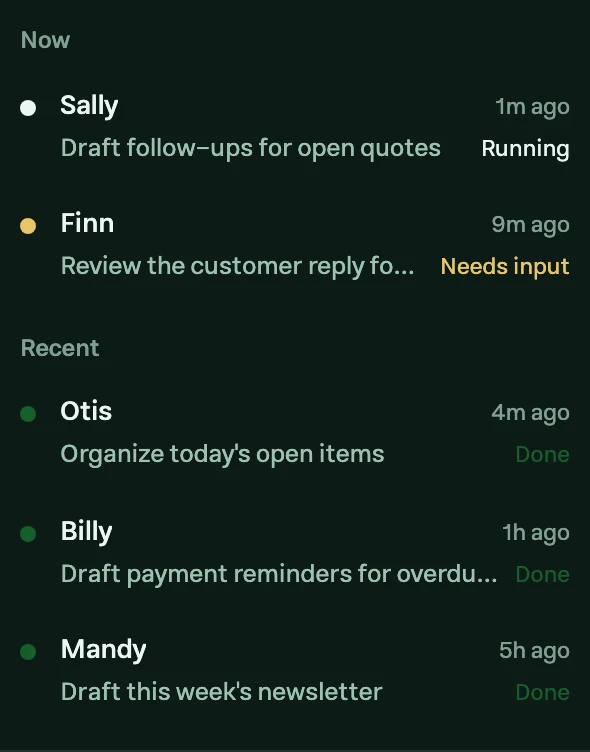
See what needs you
Activity shows running jobs, pending decisions, and completed work.
Your context. Your controls.
Choose a role, describe the job, and share relevant business information. Connected tools determine which external actions are available. No agent builder or personal API key required.
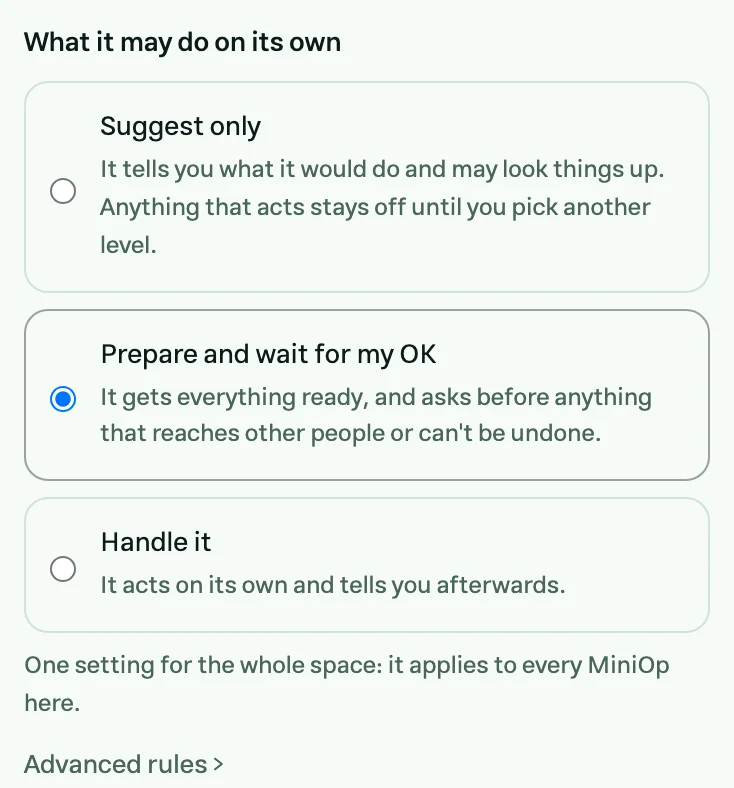
Choose how much it may do
The default is Prepare and wait for my OK. One setting applies to every MiniOp in your workspace. You can change it.
How work moves
Prepared
Your MiniOp drafts the work and shows you.
Your call
Outward or irreversible actions wait for your OK, under your workspace rules.
Recorded
Conversations, decisions, and job status stay reviewable in the app.
- Advice
Suggest only
It suggests next steps and keeps its own notes. Lookups may ask for approval; external actions stay off.
- Default
Prepare and wait for my OK
It prepares work and asks before actions that reach other people or cannot be undone, subject to your approval rules.
- More autonomy
Handle it
Available tools can act without the Prepare approval gates. Choose this when you are ready to grant that access.
Review conversations, decisions, and job status in the app.
Before you hire
- What can I give it today?
- Start with replies, follow-up drafts, open-item notes, invoice reminders, or marketing drafts. Supply the details it needs; external actions require connected tools.
- Does it already connect to my business tools?
- Connections depend on your beta setup. Describe the email, shop, or accounting workflow you need when you request access.
- Will it always ask before acting?
- Prepare is the default. It asks before outward or irreversible actions under your workspace rules. Handle allows more autonomous action. Existing approval exceptions also affect behavior.
- Where do I use it?
- Use the web app shown here. Telegram is another access route when it is enabled for your workspace.
- What do I need to provide?
- Choose a role and explain the job. Share the customer details, notes, or other business context needed for that task. MiniOp supplies the AI model.
- How do I get access?
- MiniOp is in private beta and invite-only. Join the waitlist in the app. If you already have an invitation or account, use Sign in.
- What does it cost?
- The beta is free for the selected partners invited into it. When paid plans arrive, the price is shown in the app before anything is charged.
- What happens to my data?
- Your business details are stored to run your workspace and sent to the AI model that produces replies. MiniOp does not sell your data. The privacy policy has the full story.
- Who builds MiniOp?
- A small team of founders in Abu Dhabi, United Arab Emirates. Write to maker@miniop.space — a person reads every message.
Have a job in mind?Meet your next MiniOp.
Join the waitlistPrivate beta, invite-only. Leave your email in the app to request access.